Showing posts with label working. Show all posts
Showing posts with label working. Show all posts
Sunday, April 16, 2017
RUMOR! SAMSUNG WORKING ON SMARTPHONES WITH FOLDABLE SREENS TO RELEASE 2017
RUMOR! SAMSUNG WORKING ON SMARTPHONES WITH FOLDABLE SREENS TO RELEASE 2017
RUMOR! SAMSUNG WORKING ON SMARTPHONES WITH FOLDABLE SREENS-TO RELEASE 2017

Samsung Working On Smartphones With Foldable Screens – To Release In 2017:
Samsung has been among some of the most popular names in the markets of technology. The company has been coming out with a large number of updates and upgrades over the years, and has been changing the way the markets of technology function. The company has been among the leaders in the markets of android technology, and has been having a great run since the last few years. Samsung is now working on changing the way the markets of smartphone devices work, and after introducing curved and edged devices, the company is now expected to launch devices with foldable screens.
Samsung has been among some of the most popular names in the markets of technology. The company has been coming out with a large number of updates and upgrades over the years, and has been changing the way the markets of technology function. The company has been among the leaders in the markets of android technology, and has been having a great run since the last few years. Samsung is now working on changing the way the markets of smartphone devices work, and after introducing curved and edged devices, the company is now expected to launch devices with foldable screens.
Foldable screens are no surprise to those who have been following the markets of technology these days, as many companies have been working on that and LG actually showed it off earlier this year. However, to implement the same in a smartphone is the next big step, and Samsung is already heading there.
Current plans for the company are that they would be launching two smartphone devices in 2017, one of which would have a 5 inch foldable screen that would snap into half when you fold it, similar to a flip phone.
The other device, however is more interesting. The foldable screen of this device too would come in at 5 inches, but when needed, users can expand the screen and make it into an 8 inched tablet! Samsung does have all the resources to accomplish this, as they are the world’s largest OLED manufacturers and have a team of engineers and innovators who have never shied away from doing the different.
Samsung is all set to take a major step forward towards the future of smartphone technology, and foldable screens might just be the future of technology in an ever shrinking world. What are your opinions on the same? Comment below and let us know:
You can follow us on Twitter, add us to your circle on Google+ or like our Facebook page to keep yourself updated on all the latest from Microsoft, Google, Apple and the Web.
Available link for download

Friday, March 10, 2017
How to Fix Start Menu Search not Working Not Showing Results
How to Fix Start Menu Search not Working Not Showing Results
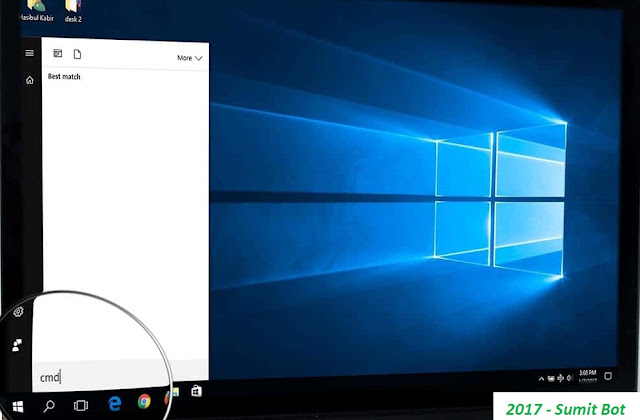
Start Menu search is an older feature which is available in all windows versions like XP, Vista, 7, 8 etc. But, In Windows 10, Microsoft has introduced a search box in taskbar. It is actually integrated with Cortana. Users from cortana unsupported countries don’t have this search box on taskbar. They can open start menu and type anything to search. But, Sometimes, Start menu search may not go through right way. In this article, I’ll guide how to fix start menu search not working problem.
Normally, When you type anything in start menu, It should show you the instead results. But, When there is something wrong, It won’t show you anything. As a result, You may face a little inconvenience to find anything quickly. Sometimes, This may hamper your regular works. The users who already have faced this problem, They are surely looking for a good solution. But, Everyone should know the ways to resolve this problem.
There may be many reasons behind this issue. Third-party programs specially the PC optimizers and antivirus, corrupted system files and services etc. can cause this problem. It also can be a result of your hard disk problem. So, In order to fix start menu search problem, We may need to solve these issues.
How to Fix Start Menu Search not Working Properly:
Before starting repairing steps, You should restart your PC and see if it resolves the search issue. Anyway, Here are the most working methods that can help you.
1. Start / Restart Windows Search Service:
Sometimes, Windows search service may stop working for any unexpected reasons. Restarting this service can fix any search related issues. Again, You may disable it by mistake. In that case, You may need to enable it. All of these things can be done very easily. Here are the instructions.
- At first, Open RUN. You can press Win + R to launch it.
- Now, Type services.msc and click on OK or hit Enter.
- In new window, You will see a list of services. From there, Find Windows Search and double click on it. This will open its properties.

- Now, Click on Stop and then click on Start.
- Then, Set Startup type as Automatic.
- Now, Try to search anything and see if it “fixes start menu search not working problem” or not.
- If it doesn’t resolve the problem, Restart your PC and check again.
2. Tweak Cortana Language Settings:
It may seem weird. But, This method worked for me. So, I’m adding it in this article. When you encounter this search problem, You should try to change your language to anything else and then change back to it in previous one. To do it, You have to follow these steps.
- Click on taskbar search box or type anything in start menu search. You should should see a setting icon at the bottom left corner. Just click on it.

- Now, Scroll down and find language options.
- Change language and try searching anything.
- It should fix start menu search not showing results problem.
3. End Search and Cortana Process:
This is another best working solutions to repair start menu search problem. Restarting Search or cortana can help us. But, There is no direct option to do it. So, We will play a little trick. As search / cortana process starts automatically, We will end this process from task manager. So, It will work like restarting cortana. Here are instructions.
- Right click on Taskbar and choose Task Manager.
- Now, Try to find anything like these “Search and Cortana Application”, “Cortana background task”, “Cortana” or “Search” etc.
- Just right click on the service and click on End task.
- Now, Try to search anything from start menu and see if it works.
4. Follow Some Other Methods from Another Article:
Previously, I have published an article on taskbar search and cortana issue. The methods described there are also useful for start menu search problem. So, You can follow the uncommon methods from there in order to solve start menu search not working / showing results. Read: Fix Cortana and Taskbar Search not Working
5. Use Disk Defragment:
When your hard disk become extremely fragmented, It performs very slowly. You should know that hard disk speed is a key factor of windows or any operating systems performance. For this problem, Windows start menu search may not show any results or may show results very slowly. In that case, Built-in disk optimizer tool can help you.
- Open Run, Type dfrgui and hit Enter.
- Now, Select disk drive and click on Optimize.
- It may take a few minutes to 1 or 2 hours to complete the task.
After doing it, You should not longer face start menu search not working problem.
6. Repair Hard Disk Problem:
I hope, This article will help you in order to get rid of start menu search not showing results problem. You can comment below to know or suggest anything related to this topic.
Available link for download
Friday, January 27, 2017
Etisalat Unlimited BBlite Bis Cheat 2016 On Android Is Now Working On Tweakware
Etisalat Unlimited BBlite Bis Cheat 2016 On Android Is Now Working On Tweakware
Etisalat Unlimited BBlite Bis Cheat 2016 On Android Is Now Working On Tweakware
More good news and juice are coming to this our new etisalat bblite bis unlimited browsing,tweakware settings for etisalat 2016 is ready to explode,as you knw that i posted some articles back on this plan
But still people are complaining not working, so worry not...because those of you who already updated their tweakware can testify this and they can see that the new Etisalat BB10 is added on the list of the tweakware VPN.

Etisalat unlimited browsing July 2016
This means that you can now use your tweakware to power all your android apps,i tried it and guess what!! it works fine even on free servers,so for now you dont need to be a premium user as you can use the free
servers which are allocated at 200mb.
Etisalat unlimited browsing July 2016
Etisalat unlimited browsing July 2016
But as time goes by many people will come to it and it will lead to network congestion.
So you can Download latest tweakware vpn apk Android here and you will see what am telling you.
The good advantage of tweakware over the other VPN servers is that it is already configured to any cheat and plan,so you dont need to configure anything on your tweakware,just connect and wait for successful handshake.
This is more advance and preferable than the Uc handler settings for etisalat bblite bis browsing cheat 2016 because it powers all your apps.
Note:
You might get limited to using 200mb daily because you are not a premium user,but with www.pcandmobilsolution.blogspot.com...we believe all things are possible,so i will be dropping a tutorial on how to bypass the tweakware free user 200mb allocation.
Click here To get 3.8Gb for just #1000 naira valid one month
if you still are confused or have any questions in mind please drop your comments below and i will get back to you as soon as possible.
Read Also:
Psiphon And Tweakware New Etisalat Bblite Bis Code Subscription & Settings For Andriod 2016
Etisalat blackberry is back again after sometime ago,this time it comes with the Bb10 packages and believe me this thing is working normal without any restrictions.This post on how to browse and download unlimitedly on etisalat with tweakware updated is a little bit late as i wanted to confirm this stuff working for my www.pcandmobilesolution.blogspot.com.
Click here To Get Cheaper Data at #70 Naira Daily
While airtel is busy doing us yanga with their new 2g data plans,Our honorable tweakers provided a new way on how to use the etisalat Bb10 plan on Psiphon VPN and tweakware Mo without any stress of imei tweaking.
This data plan comes with a data cap of 6gb,that is much off course... so even when you subscribe to the daily data plan for #70 it is still going to be the same 6gb.Now "How to use etisalat Bblite (Bis) on your android device.
Things Required:
==>Download psiphon handler here
==>Moded Tweakware(Download Tweakware Mod here)
==>An android device with 3g enabled
==>And the subscription to any of the Bblite plans below
How To Subscribe To Etisalat Bblite Plans
==>Daily plan(*559*2*2#) cost N70
==>Weekly Plan(*559*2*1#) cost N350
==>Monthly Plan(*559*2#) cost N1000
You Can Also Subscribe To The Etisalat Bblite Plan Using Sms
==>SMS Dlite to 399 For Daily Plan
==>SMS Wlite to 399 For Weekly Plan
==>SMS Mlite to 399 For Monthly Plan.
How To Use Etisalat Bis On Android (Bblite)
Configure your mobile phone settings with the settings as follows
==>Go to your APN settings
==>APN : blackberryx.net
==>Proxy:empty
==>Port :empty
Psiphon Handler Settings For Etisalat Bis On Android.
By now i know you have already installed your downloaded psiphon handler and ready to use.
Now insert the below settings in the psiphon handler settings.
==>Proxy type: real host
==>Proxy server: blackberryid.blackberry.com
save the settings and go to your More option settings then untick the connect through an http proxy
==>Now click on the connect button and wait for few seconds for it to connect
Etisalat Bblite Tweakware Mode Settings
==>Go to logs and switch to the handler menu
==>Now it will request for a childlock code which is = cdce.imishiro.032990
==>And after you unluck it use Real host as the proxy type
==>Now clear the click.php you will see there and replace with blackberryid.blackBerry.com and save
==>Now finally go to settings and untick the connect through an http and go back to home tab and click on
CONNECT
Note:It will take some seconds to connect and if in anycase it refuse to connect just turn off your data and on it back so as to refresh your connection.
With this settings i can no doubt tell you that you will enjoy the speed of etisalat with no speed throttling or any restrictions, this data is fast,good for both streaming and downloads and you can use it to theater the network to your PC which i will drop for you guys later.
Etisalat Bblite On Android Is Working Flawlessly With UCMini Handler Browser
if you subscribed to the etisalat unlimited bblite bis data and couldnt use it on your psiphon settings we dropped earlier then here is an alternative to it but this time using UC mini handler,as this one is confirmed working at time of posting
No long story guys,lets just move to the point.
How To Use Etisalat Unlimited BBlite On Android Via UC Mini Handler
+++Default phone settings
==> Name : Bblite Uc
==>Apn : etisalat
==>leave all other field empty
UC Mini Handler Settings For Etisalat BBlite BB10 On Android
==> Download Ucmini handler here
==> Insert this settings below
==> Proxy type : Real host
==> Proxy server : blackberry.blackberryid.com
==> Save your settings and fire on
We also notice that the Bblite is flawlessly working with playstore so i guess its time to download your high dimension app and games like the new Mortal kombat X etc...enjoy while it last
BLAZING - How To Use Etisalat Unlimited BBlite BB10 Plan On PC
As i promised earlier in the post i posted yesterday on blabalabla i finally brought the tutorial on how to use the etisalat unlimited Bblite Bb10 plan on pc.This data plan seems to be unlimited and not the 6gb as we thought because yesterday i was able to download upto 8gb data with the daily Dlite to 399 subs.
so while many of us are currently enjoying this data plan on Android, i decided to use it both on Android and PC easily and enjoy the speed all in one
If you can remember etisalat socialme plan and how to use it on PC,them the same method apply to this one too...so just follow me bumper to bumper as i go.
Requirements
==>You must have subscribed to the etisalat Bblite Bb10 plan and configure it with your Psiphin handler,
And once it starts browsing then you are good to go and can configure not to work on your PC with the below steps
How To Use The Etisalat Bblite Bb10 data subs on PC
==>Download PdaNet App for Pc here and mobile here.
==>Download FoxFi key latest version here.
==>Your Android device with your Psiphon working
==>Your PC
==>And an original USB cable.
How To Connect/Tether Your Bb10 data To PC
==>After downloading both the Android and PC PdaNet
==>Install and Run it on your PC and then open the app on your android too
==>Now in your android tick on the connection Mode you want to use
There are 3 basic connections
1-USB
2-Bluetooth
3-WiFi
==>After that on your pc choose the network connection mode you just choose from your phone above in PdaNet.
==>Now finally click on connect and viola,you are on.you will see network connection on your PC and you can now enjoy the data both on your PC and Android.
Note:
with this tutorial and method you can share your Etisalat chat pack,Mtn bis,Mtn bblited,mtn musicplus and other sort of data plans or cheats to your pc with the Bluetooth tethering, Usb tethering and the Wi-Fi tethering option on PdaNet
Available link for download
Subscribe to:
Posts (Atom)